On Shopify Plus, verification can run inside checkout itself. The buyer enters an address, we verify it’s deliverable against carrier and postal data, and the corrected version appears right there, before the order is placed. One tap applies it to the form. This page walks through the setup, including the two switches in the checkout editor that most merchants miss, and what each one changes for the buyer.
What you need
Two things gate this surface. Shopify renders app blocks inside checkout on Shopify Plus stores only, so the in-checkout prompt is Plus territory. Your Block rules are a different mechanism and keep hard-stopping checkout on every plan. And because the fix comes from the carrier check, the store needs Pro, or the first 100 free orders of the trial.
Step 1: pick a mode on the Verification page
In the app, open Verification and find the In-checkout correction card. It has three settings:
- Off. Buyers only meet verification after checkout, on the thank-you and order status pages.
- Suggest fixes. The verified fix appears next to the address form and the buyer can apply it with one tap. Checkout never stops.
- Require a fix or confirmation. Checkout pauses until the buyer applies the fix or confirms the address as entered. The buyer can always proceed by confirming. The pause makes them look at the address; it doesn’t trap them. If you want certain addresses stopped outright, with no confirmation path, that’s what Block rules are for.
Step 2: add the block in the checkout editor
Open the checkout editor (the Verification page has a button straight to it), click Add app block on the checkout page, and pick Address Verification. The block lands right above the address form, and you can drag it anywhere Shopify allows. On mobile checkouts a spot near the Pay button stays visible while the buyer scrolls, which is where we’d put it.
Step 3: turn on the block’s two switches
Select the block in the editor and look at its Checkout behavior panel. There are two switches, and both start off.
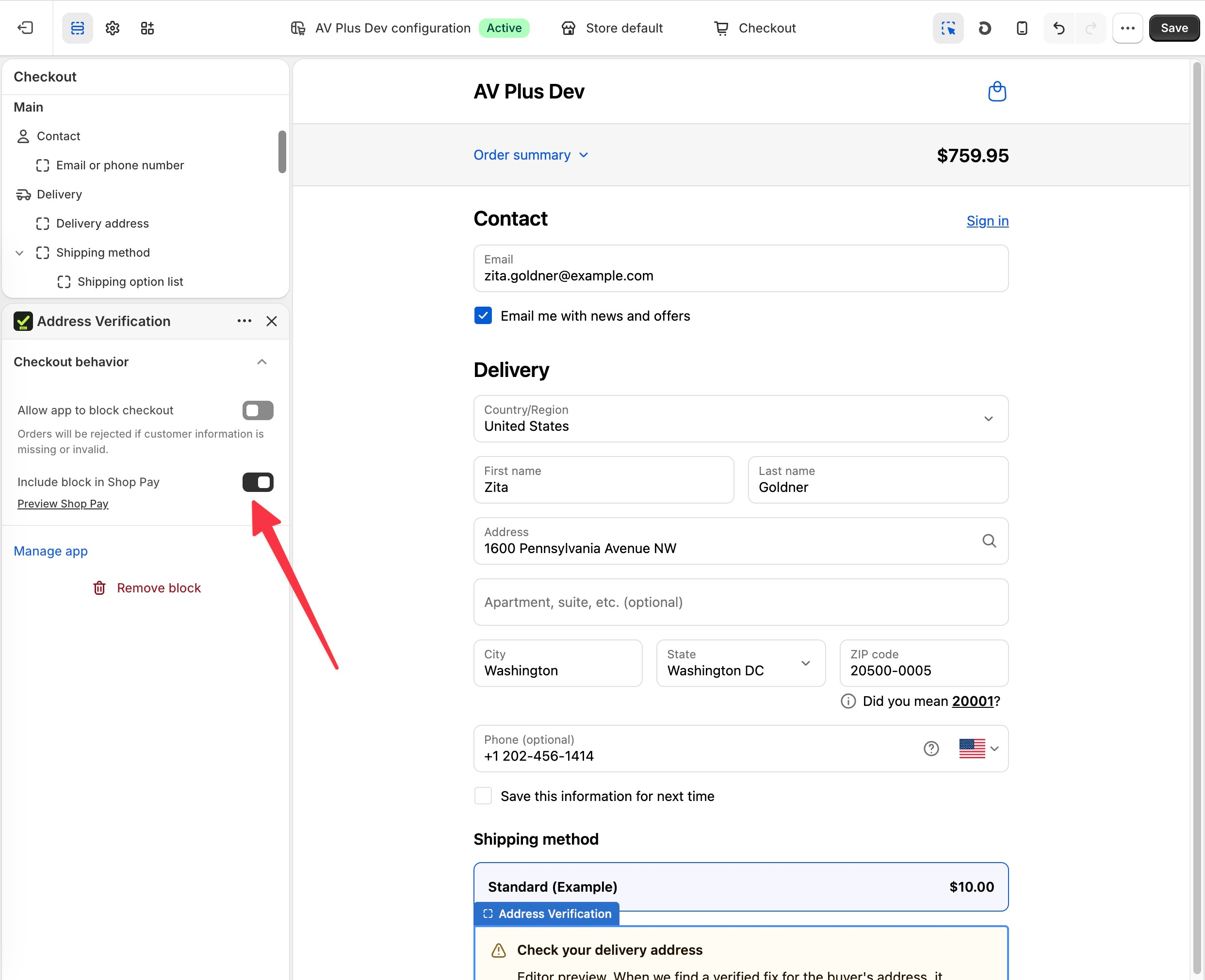
Allow app to block checkout. Shopify treats pausing checkout as a permission you grant per block, so we can’t turn it on for you. “Require a fix” does nothing without it: the prompt still renders, but the Pay button keeps working and the buyer can pay straight past the warning. If you picked Require a fix in step 1, flip this on. If you already noticed checkout not pausing, this switch is the usual cause.
Include block in Shop Pay. Shop Pay buyers skip the address form and ship to whatever their wallet saved, which makes them the largest source of stale addresses. This switch renders the prompt inside Shop Pay itself, right above the Pay now button, so the saved-address problem gets caught while the buyer is still looking at the screen. We recommend turning it on.
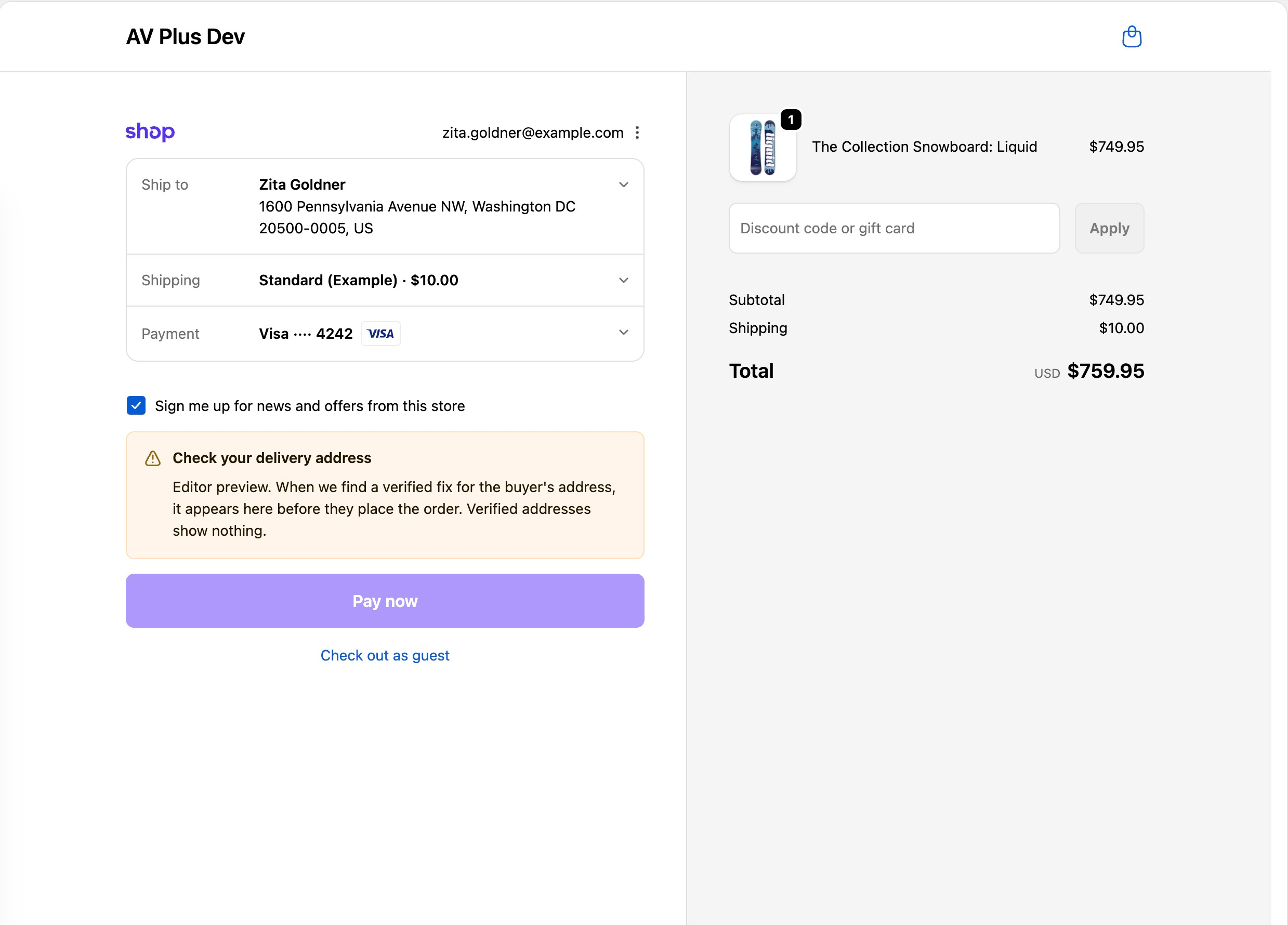
One honest edge: accelerated checkouts don’t always let an app write into the address directly. When Shop Pay declines the write, the prompt shows the verified fix without the one-tap button and the buyer updates the address through Shop Pay’s own Ship to section instead. Apple Pay and Google Pay payment sheets are outside Shopify’s checkout entirely, so for those the thank-you page prompt remains the safety net.
What buyers see
With a deliverable address, nothing. The prompt only renders when verification finds something to say: a corrected version of the address, a missing apartment number, or an address it couldn’t verify at all. In Suggest mode the buyer can ignore it and pay. In Require-a-fix mode the Pay button stops on an unresolved prompt, with the error pinned to the address field, until the buyer applies the fix or taps “Keep my address”. If our service is ever unreachable, no prompt renders and checkout proceeds; a missed correction costs less than a broken checkout.
Billing moves to the checkout
With in-checkout correction on, billing counts verified checkouts instead of orders. It’s still $0.04 each, and a buyer who enters a full address and then abandons the checkout was still verified, so that checkout still bills. Your Billing page labels those rows so you can count them yourself. What counts as a charged order has the details.