
Before BFCM, test which shipping addresses your Shopify store rejects, which it accepts, and whether a buyer’s correction reaches the order before fulfillment. Include valid addresses in your tests. A rule that stops a PO box but also stops a street called Box Hill Road needs fixing before more buyers encounter it.
We ran six synthetic addresses through seven test cases in Address Verifier’s rule engine and completed a mobile test order on our demo store on October 12, 2026. The results below show what those tests establish, followed by a checklist you can run on your own store.
Start with your shipping policy
Choose the expected result before you enter an address. If your shipping service cannot serve PO boxes, an explicit PO box should stop checkout. If you serve military addresses, an APO or FPO address should remain eligible under your rules.
Write down the carrier and service behind each restriction. “Contains Box” is too broad a policy: it can describe a PO box, a military delivery address, or a word in a street name. A classification rule helps apply your policy; it does not establish whether a parcel will arrive.
You may already have the rules you need. Shopify’s native address format validation includes PO-box and military restrictions. Our PO-box blocking guide covers setup and the difference between blocking a category and checking an address against postal data.
Keep four fields in your BFCM shipping address test log:
- Input: Save the exact address fields you entered, including country and region.
- Settings: Record which rule is on and whether its severity is Block or Warn.
- Expected result: State whether checkout should stop, continue, or offer a correction.
- Observed result: Record what the buyer sees and, when a correction occurs, what Shopify saves.
Use synthetic addresses for classification tests. For verification tests, use an address you control and know is complete. Do not place test orders using a customer’s details.
Seven address-rule results from our engine
The same input can produce a different result when you change its rule setting. In our run, PO Box 42 produced a blocking violation at Block severity and a warning at Warn severity. A warning is not a checkout block.
The table shows offline rule-engine results, not seven live checkouts. These synthetic examples test how Address Verifier classifies text. Passing a rule does not mean the destination exists or has been verified against postal data.
| Address input | Rule setting | Observed engine result |
|---|---|---|
PO Box 42, Austin, US, 78701 | PO box: Block | The engine returned a PO-box violation and marked it blocking. |
| Same PO box | PO box: Warn | The engine returned a warning without a hard block. |
412 Box Hill Rd, Brandon, MB, Canada, R7A 5Y1 | Street + box: Block | The street name did not trigger the street-plus-box rule. |
22 Henry Box Brown Lane, Toronto, ON, Canada, M5V 3A8 | Street + box: Block | The street name did not trigger the street-plus-box rule. |
Unit 2050 Box 4190, FPO, AP, US, 96278 | Default rules; military restriction off | The engine returned no violations, including no missing-house-number violation. |
PSC 1234 Box 5678, APO, AE, US, 09014 | Military: Block | The engine returned a blocking military-address violation. |
41 3rd Avenue with line 2 PO Box 117, Brandon, MB, Canada, R7A 5Y1 | PO box and Street + box: Block | The engine returned the PO-box violation only. |
The Box street names passed these specific rules. Include an ordinary street address alongside the category you want to block in your own tests. Put a box reference in address line 2 to check that your configuration examines both lines.
For military addresses, check the fields rather than trying to turn the address into a conventional street address. Shopify’s military-address guidance uses APO, FPO, or DPO as the city, the appropriate Armed Forces region, and United States as the country. Whether you accept that destination still depends on your shipping policy and service.
Repeat the relevant cases in your store’s checkout. That checks whether the rule is active in the buyer’s actual flow. The engine results above cannot establish that placement or activation for your store.
Follow a correction through to the saved order
Check the saved order after a correction. In our demo run, we observed a successful correction response but did not independently read back the address in Shopify admin.
In our mobile demo order, we entered 215 clayton stret, San Francisco, CA, with ZIP 94118. Address Verifier checked the address against carrier and postal data and returned 215 Clayton St, San Francisco, CA 94117-1913. The app classified this response as standardization. The Thank-you page showed the standardized address after the correction endpoint returned success.
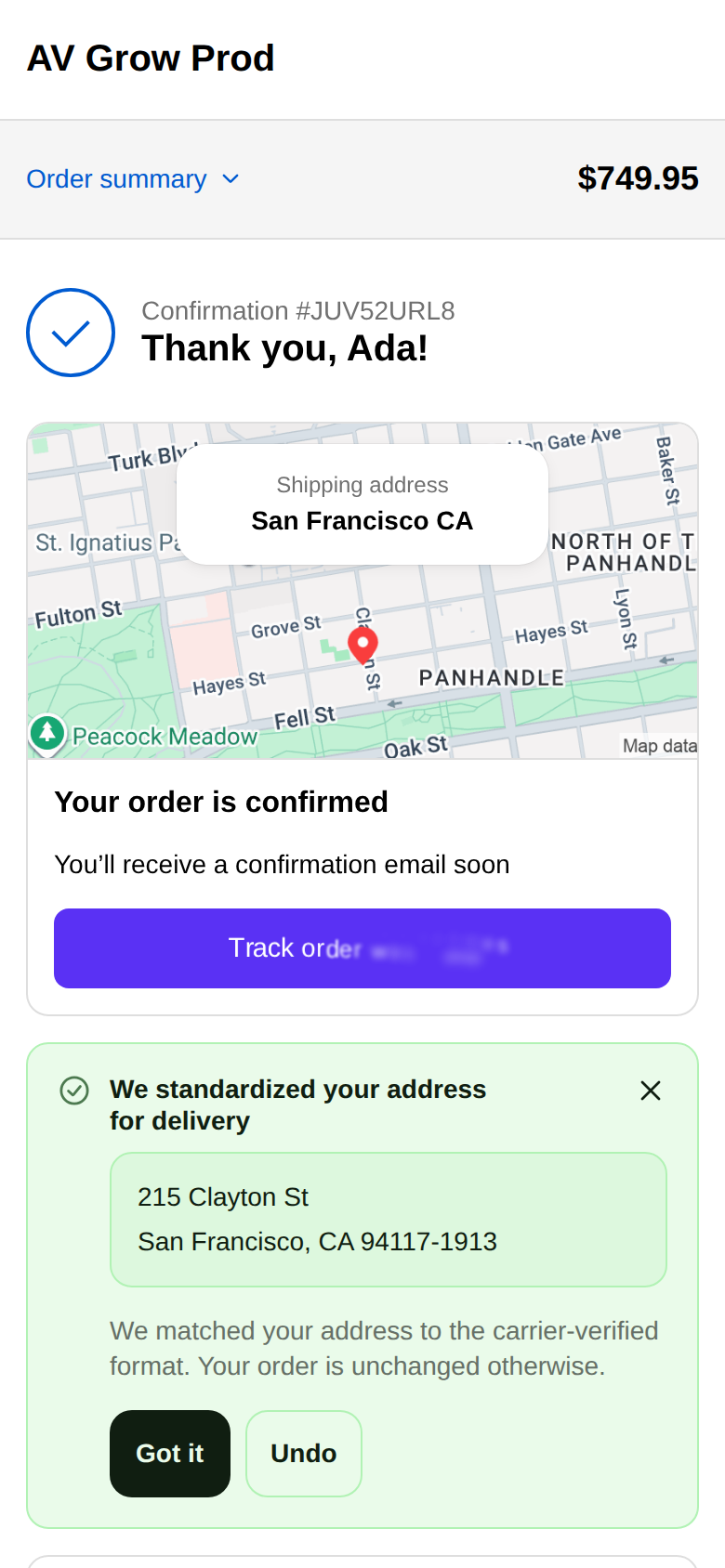
Our mobile test used Shopify’s test payment gateway, not a customer purchase. The correction endpoint returned a successful write response before we captured this screen. We did not independently confirm the saved order in Shopify admin, test physical delivery, or inspect a warehouse integration.
We also saw why a screenshot alone can be misleading. An earlier desktop capture showed the standardized address while the write was still pending and the Undo button was disabled. For the mobile capture, we waited for the successful write response and the enabled Undo control. The earlier screen did not prove that Shopify had saved the change.
For your own test, open the order in Shopify admin after the buyer completes the correction. Compare the saved shipping address with the one you entered. If your fulfillment tool imports orders immediately, inspect its record too. Editing customer details in Shopify does not by itself prove that a label or another system now uses the corrected address.
Record when the correction happened and when fulfillment received the order. If the old address has already reached the label, you need a process for handling that change. Our returned-to-sender guide covers what to do when an address problem reaches shipping.
Missing-unit tests need a known destination
Use a known multi-unit destination when you test apartment or suite handling. Leaving address line 2 blank on an arbitrary street address does not establish that a unit is missing.
In Address Verifier, a returned missing-unit result asks the buyer to complete the address. It does not supply an invented apartment number. A verification result also cannot promise the same apartment-level precision for every destination.
Run the test once with the known unit included and once without it. Record the verification response and the buyer’s options. Then complete the missing information and check the saved order. Our missing apartment number guide explains the evidence and limits in more detail.
We did not run a live missing-unit case for this article. This is a test for your store, separate from the observed standardization example above.
A saved wallet address can pass verification
A deliverable address can still be the wrong destination for this purchase. A buyer may have moved, be sending a gift, or have selected an old saved address.
Shop Pay saves shipping addresses, so include it in your checkout review if buyers use it. Confirm which address the wallet supplies and how the buyer can select another one. Repeat the review for each accelerated payment method you offer instead of assuming they expose the same controls.
Postal verification checks an address; it cannot know where that buyer intends to receive this order. The saved-address guide covers that distinction and the limits of wallet correction flows.
Shopify’s Cart and Checkout Validation Function documentation lists accelerated checkout support, including Shop Pay, PayPal, Google Pay, and Apple Pay. That support concerns validation rules. It does not mean every wallet gives a checkout UI extension permission to change the address.
We did not test wallet flows in the demo run. Record their behavior on your store before describing them as covered.
Where your correction prompt can run
Address Verifier’s checkout rule blocking runs on all Shopify plans. Its optional in-checkout correction UI requires Shopify Plus and Pro access, including the trial. Those are separate capabilities.
For post-purchase verification, place the Address Verifier blocks on the Thank-you and eligible Order-status pages through Shopify’s checkout editor. Test both pages if you intend to use both. An order is not automatically checked just because the app is installed; the eligible block has to load.
On Plus, test the in-checkout block where you placed it. Suggest mode leaves the buyer a choice. Enforce mode can pause progress while a visible correction remains unresolved, subject to Shopify’s blocking permission. Test the available buyer actions and permissions rather than assuming that Enforce means every suggestion must be accepted.
Also record whether Shopify’s own checkout address suggestions are enabled. Shopify warns about conflicts with third-party address validation apps. Test the settings separately so you know which system produced a message.
If you test paid in-checkout verification, include abandoned checkouts in your billing review. Address Verifier bills those validated checkouts by design. See what counts as charged before enabling that flow for peak orders.
Keep the input, rule settings, buyer screenshot, saved order address, and fulfillment record together so you can trace a failed case. Repeat the affected tests whenever you change a rule, correction mode, checkout placement, or shipping service. Resolve unexpected results before increasing restrictions for BFCM.
If policy blocking is all you need, test the native rules available to you first. If you need carrier and postal verification with buyer correction prompts, install Address Verifier and run a test order through your fulfillment workflow before BFCM.